Test Windows policies from Intune custom profiles with Microsoft DSC
Test and apply two device-scoped Windows policies from YAML.


Back in the days, I was responsible for configuring Mobile Device Management (MDM) together with Microsoft Intune and System Center Configuration Manager (SCCM). Those days are gone, but it learned me to work with OMA-URI.
Fast forward a couple of years and I was reading through the Microsoft DSC repository. I stopped at a folder I hadn't seen before: adapters/csp. The adapter reference describes how it exposes Windows MDM Bridge classes as DSC resources. Was this really Mobile Device Management, inside DSC?
It was. Some of the same settings Intune delivers to Windows can be tested and set from a DSC configuration document, even on a machine Intune has never seen.
If you already work with Intune custom profiles, this lab shows how to test and apply device-scoped Windows Update and Defender settings on a disposable, unenrolled Windows 11 Enterprise VM in Azure. Azure Run Command doesn't require an inbound SSH or RDP rule, but the VM still needs outbound HTTPS for Run Command and the DSC download.
Prerequisites
To follow along, you need:
- A disposable, unenrolled Windows 11 Enterprise test machine, or an Azure subscription and a license that lets you deploy one.
- For Azure Run Command: the Azure CLI, signed in with
az login, and permission to invoke Run Command. If you're deploying the demo VM, you also need Bicep and permissions to create the resource group and deploy the VM and its network resources. - PowerShell 7 on your own machine and basic familiarity with Microsoft DSC configuration documents.
Understanding the CSP adapter
Intune doesn't change Windows settings itself. It sends them to Configuration Service Providers, or CSPs, which are the interface Windows offers to any MDM server. If you have ever typed an OMA-URI like ./Device/Vendor/MSFT/Policy/Config/Update/ActiveHoursStart into a custom profile, you have addressed a CSP directly.
Windows exposes a subset of CSP settings locally through a WMI provider called the MDM Bridge. The adapter first shipped in DSC 3.4.0-preview.2. The install script below uses preview.3. The adapter exposes eligible MDM_* classes installed on the target machine. For example, the Update bridge class becomes Microsoft.Windows.CSP/MDM_Policy_Config01_Update02, and ActiveHoursStart is a property on it.
The adapter requires LocalSystem for device-scoped settings. My first plan was to push the document over the SSH prototype I've been working on, but an SSH session runs as the account you sign in with. Even an elevated administrator isn't LocalSystem. Microsoft's own guidance for the bridge tells you to start PowerShell with psexec -s.
Then I remembered that Azure Run Command runs as SYSTEM on Windows VMs.
Setting up the virtual machine
[!TIP]
Already have an unenrolled Windows 11 Enterprise test machine? Skip the Bicep deployment. For an existing Azure VM, start at Installing DSC with Run Command and substitute your VM name and resource group in every Run Command example. For a machine outside Azure, skip Run Command too: runinstall-dsc.ps1and the DSC commands locally in a PowerShell session running as LocalSystem, following the WMI Bridge guidance. If the DSC preview used here is already installed, go straight to Finding the CSP resources.
I had a Bicep template left from an SSH demo, built on Azure Verified Modules. For this tutorial I removed the storage account, managed identity, custom script extension and inbound SSH rule. The VM still has a public IP for outbound connectivity, but the template adds no custom inbound rules. The default network security group rules still apply.
The other change is the image. The Update and Defender bridge class references list no supported Windows Server version, so this lab uses Windows 11 Enterprise.
imageReference: {
  publisher: 'MicrosoftWindowsDesktop'
  offer: 'windows-11'
  sku: 'win11-24h2-ent'
  version: 'latest'
}
[!NOTE]
Download the demo files from my GitHub repository and open PowerShell in the demo directory soinfra/main.bicepresolves.
Create a resource group and deploy the template. The deployment asks for an administrator password that you won't need again.
az group create --name rg-dsc-csp-demo --location westeurope
az deployment group create --resource-group rg-dsc-csp-demo --template-file infra/main.bicep
Installing DSC with Run Command
Run Command uses the VM agent to run a script as SYSTEM, which is exactly what the adapter asks for. Use the included install-dsc.ps1, or save the following script under that name. It downloads the release from GitHub, unpacks it and adds it to the machine path.
$ProgressPreference = 'SilentlyContinue'
$url = 'https://github.com/PowerShell/DSC/releases/download/v3.4.0-preview.3/DSC-3.4.0-preview.3-x86_64-pc-windows-msvc.zip'
$zip = Join-Path $env:TEMP 'dsc.zip'
$path = Join-Path $env:ProgramFiles 'dsc'

Invoke-WebRequest -Uri $url -OutFile $zip -UseBasicParsing
Expand-Archive -Path $zip -DestinationPath $path -Force
$machinePath = [Environment]::GetEnvironmentVariable('Path', 'Machine')
[Environment]::SetEnvironmentVariable('Path', "$machinePath;$path", 'Machine')

& "$path\dsc.exe" --version
whoami
Now send the script to the VM.
az vm run-command invoke --resource-group rg-dsc-csp-demo --name vm-dscdemo `
    --command-id RunPowerShellScript --scripts '@install-dsc.ps1' `
    --query 'value[0].message' --output tsv

[!NOTE]
With the script above, check thatdsc --versionreports3.4.0-preview.3andwhoamireportsnt authority\system. The screenshot is from the earlierpreview.2run and shows the identity check, not the version installed by this script.
Building the configuration document
With DSC on the VM, you can start writing the document. It takes three small steps:
- Find the available CSP resources through the adapter
- Describe the Windows Update settings
- Describe the Defender settings
Let's start with finding the CSP resources first.
Finding the CSP resources
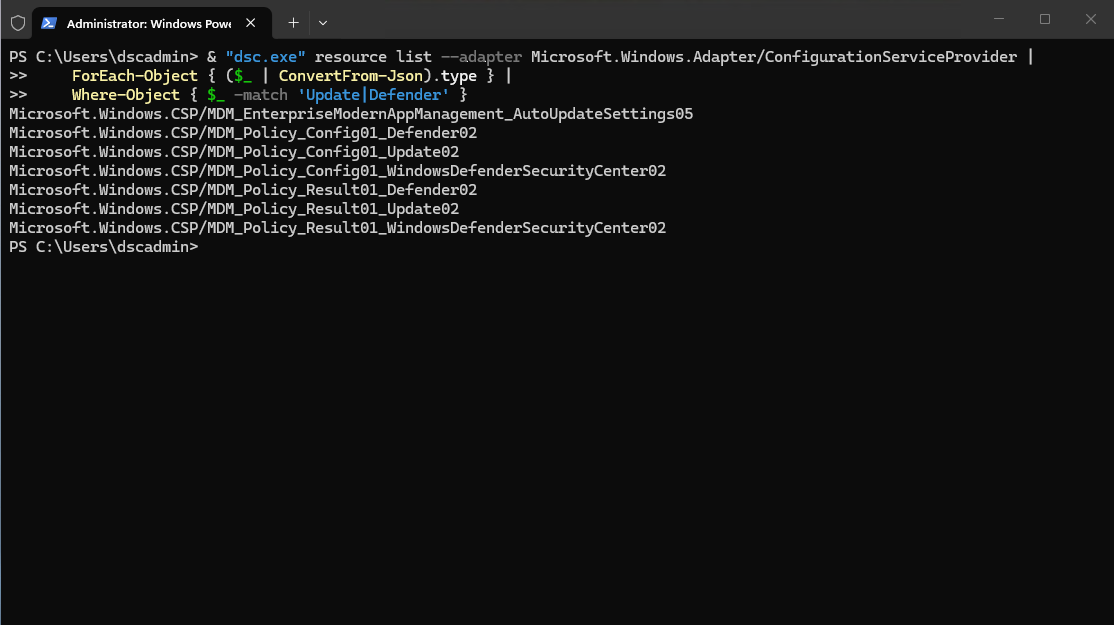
The adapter can tell you which resources this Windows build offers. Run Command returns only the last 4,096 bytes of output, so filter on the VM to keep the output short. Send list-csp.ps1 the same way as the install script, or run it directly in your local LocalSystem session.
& "$env:ProgramFiles\dsc\dsc.exe" resource list --adapter Microsoft.Windows.Adapter/ConfigurationServiceProvider |
    ForEach-Object { ($_ | ConvertFrom-Json).type } |
    Where-Object { $_ -match 'Update|Defender' }
[!NOTE]
This example prints only the type names. To check whether a class supportsset, list that specific type and inspect itscapabilitiesfield instead. The adapter reference explains how those capabilities are derived.
Writing the Windows Update resource
Use the included csp.dsc.yaml or build it from the next two snippets. ParentID and InstanceID are the WMI keys for this Update class: the parent path and the instance identifier under it. The other properties are the settings to manage.
$schema: https://aka.ms/dsc/schemas/v3/bundled/config/document.json
resources:
- name: Windows Update
  type: Microsoft.Windows.CSP/MDM_Policy_Config01_Update02
  properties:
    ParentID: ./Vendor/MSFT/Policy/Config
    InstanceID: Update
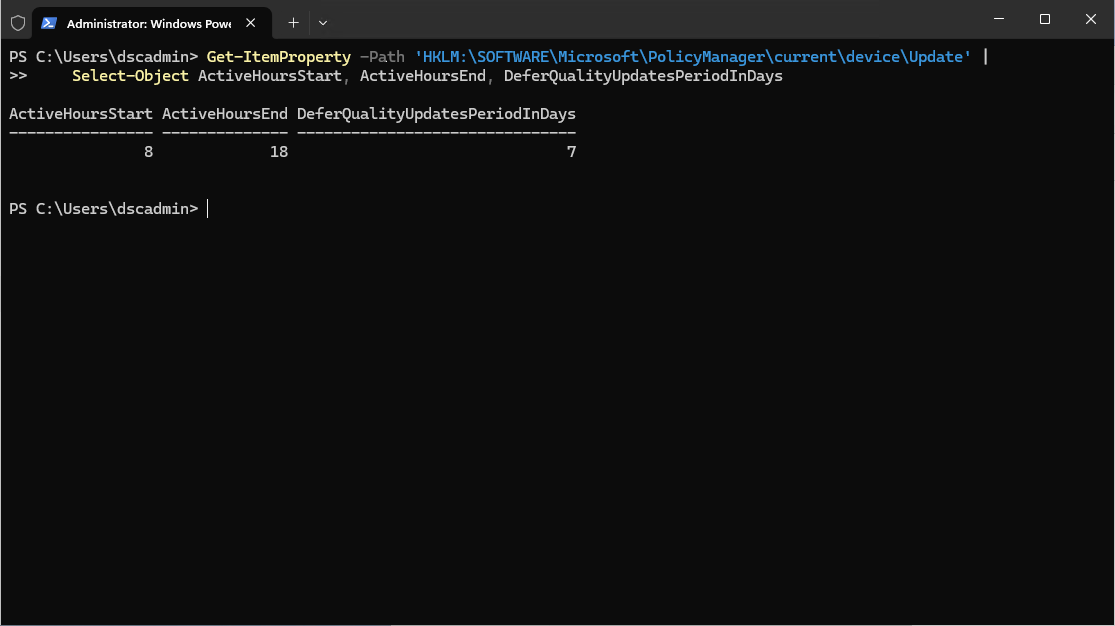
    ActiveHoursStart: 8
    ActiveHoursEnd: 18
    DeferQualityUpdatesPeriodInDays: 7
Adding the Defender resource
Defender works the same way with its own bridge class. If you're building the file yourself, add this resource below the first one.
- name: Defender
  type: Microsoft.Windows.CSP/MDM_Policy_Config01_Defender02
  properties:
    ParentID: ./Vendor/MSFT/Policy/Config
    InstanceID: Defender
    AllowCloudProtection: 1
    PUAProtection: 1
[!TIP]
List only the policies you care about. The adapter tests the properties you specify and preserves omitted properties when updating an existing instance.
Mapping your own OMA-URI
The adapter doesn't translate OMA-URIs. Start with the CSP reference for your setting to check its scope, supported Windows editions and versions, and allowed values. Then look for the corresponding class in the MDM Bridge reference and confirm that the adapter lists it on your test machine.
For ./Device/Vendor/MSFT/Policy/Config/Update/ActiveHoursStart, the Update bridge class gives you this mapping:
| DSC field | Value |
|---|---|
type |
Microsoft.Windows.CSP/MDM_Policy_Config01_Update02 |
ParentID |
./Vendor/MSFT/Policy/Config |
InstanceID |
Update |
| Property | ActiveHoursStart |
Use the keys documented for the class rather than splitting the URI by position. To inspect a candidate, run this on the test machine, substituting its resource type:
$resource = & "$env:ProgramFiles\dsc\dsc.exe" resource list 'Microsoft.Windows.CSP/MDM_Policy_Config01_Update02' `
    --adapter Microsoft.Windows.Adapter/ConfigurationServiceProvider | ConvertFrom-Json
$resource.capabilities
$resource.schema.properties.ActiveHoursStart | ConvertTo-Json -Depth 10
Check for set in the capabilities and make sure the exact property appears in the schema and isn't marked readOnly. If you're using Run Command, print just the property you need rather than the full schema. If the class or property isn't exposed on that machine, you can't manage the setting through this adapter there. If both are exposed, check the CSP's allowed values and run test before set: discovery alone doesn't guarantee that the underlying CSP accepts the write.
Applying and verifying the configuration
The document is on your machine and dsc is on the VM. Run Command connects the two. If you're running locally instead, put csp.dsc.yaml on the test machine. In a LocalSystem PowerShell session, open the directory containing the file and run the sequence directly:
$dsc = "$env:ProgramFiles\dsc\dsc.exe"
& $dsc config test --file .\csp.dsc.yaml
& $dsc config set --file .\csp.dsc.yaml
& $dsc config test --file .\csp.dsc.yaml
Run the commands one at a time and check each result before continuing. You can skip the Run Command steps below.
Sending the document through Run Command
I didn't want to copy files to the VM, so the document travels as a parameter. Use the included run-dsc.ps1 or save the following script under that name. It decodes the document, hands it to dsc and prints one line per resource.
param([string]$Operation, [string]$Document)

$yaml = [Text.Encoding]::UTF8.GetString([Convert]::FromBase64String($Document))
$result = $yaml | & "$env:ProgramFiles\dsc\dsc.exe" config $Operation --file - | ConvertFrom-Json
foreach ($resource in $result.results) {
    if ($Operation -eq 'test') {
        '{0} in desired state: {1}' -f $resource.name, $resource.result.inDesiredState
    } else {
        '{0} changed: {1}' -f $resource.name, ($resource.result.changedProperties -join ', ')
    }
}
Running test, set and test
Start with a test, which changes nothing.
$documentPath = Join-Path -Path (Get-Location).Path -ChildPath 'csp.dsc.yaml'
$document = [Convert]::ToBase64String([IO.File]::ReadAllBytes($documentPath))

az vm run-command invoke --resource-group rg-dsc-csp-demo --name vm-dscdemo `
    --command-id RunPowerShellScript --scripts '@run-dsc.ps1' `
    --parameters "Operation=test" "Document=$document" `
    --query 'value[0].message' --output tsv
In the original lab run, both resources reported False before set. Your baseline reflects the settings already on your VM.

Change Operation=test to Operation=set and run it again. The original set output listed more properties than the YAML specified, so don't use that list on its own as proof of which settings changed.
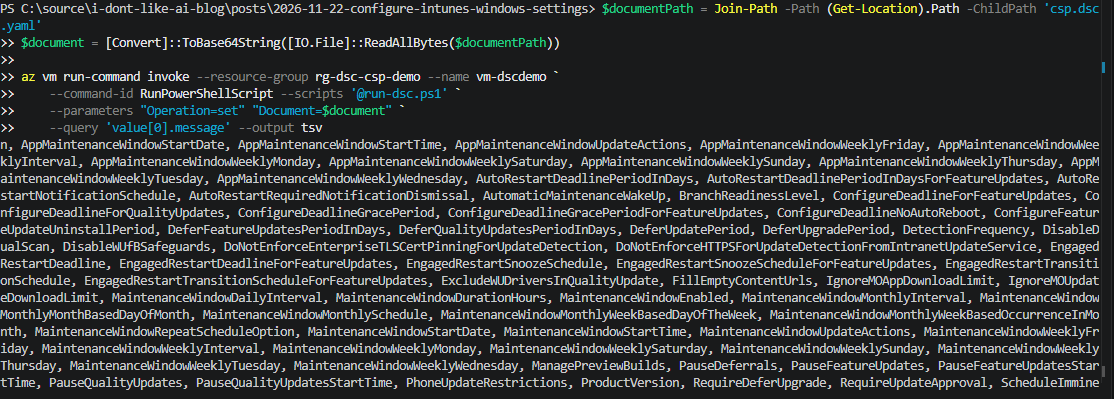
Run the same command once more with Operation=test. If both resources match the document, the expected output is:
Windows Update in desired state: True
Defender in desired state: True
The registry capture from the original run shows the three Windows Update values. It doesn't verify Defender, so use the final DSC test to check both resources.
To request deletion, add _exist: false under the resource's properties, keep its keys, and run set again. The underlying CSP must support deletion. This removes the instance without restoring its previous values.
Knowing the limits
A few things are worth knowing before this goes anywhere near production.
The SYSTEM requirement doesn't go away. Run Command solved it here. On machines outside Azure you need another way to start dsc as SYSTEM, and a scheduled task is the obvious one.
Group Policy can get in the way. Microsoft documents MDMWinsOverGP for conflicts between Group Policy and supported settings delivered over the MDM channel through Policy CSP. That isn't a guarantee about precedence for settings written locally by DSC.
If a device is enrolled, avoid managing the same setting with both an Intune profile and this DSC configuration. This lab doesn't test what happens when they overlap.
The adapter is part of a preview release. It reads and writes supported settings, but it doesn't invoke CSP actions.
Cleaning up
Only run this if you created the dedicated demo resource group for this lab. It deletes every resource in that group, not just the VM. If you reused a machine, skip this command.
az group delete --name rg-dsc-csp-demo --yes
Conclusion
I started with a question about three letters in a folder name. Next I want to try the AssignedAccess CSP and build a kiosk this way. Microsoft's kiosk documentation solves that today with a PowerShell script and psexec, and a configuration document you can test seems like the better deal.
Which Intune setting would you move into a configuration document first?